|
Post Installation
Configuration
|
|
|
Assuming you have installed the
program by now on your server or local computer where it is supposed to be
used by the world wide web or by localhost.
If everything went fine through the
installation process, then you have finished the installation
successfully. Please review the following steps carefully.
|
|
|
Directory
Structure |
|
|
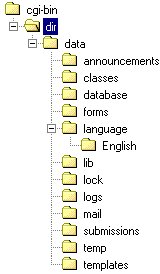
Please review the program
directory structure on your server.
Figure (1) shows the executables directory
tree of the program either on your server on locally on your computer.
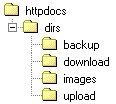
Figure (2) shows the documents (also
called the none executables, or the html) directory tree of the
program either on your server on locally on your computer.
|
|
|
 |
|
|
Figure (1).
Program Executables Directory Structure.
|
|
|
 |
|
|
Figure (2).
Program Documents Directory Structure.
|
|
|
Files and
Directories Permissions |
|
|
The following step is
platform dependent:
Unix Servers:
If the program is installed on a Unix server (Linux, FreeBSD,
Solaris,...), Then the NetShield Wizard should have set the files and
directories permissions correctly automatically. Please check your
files and directories permissions and directories structures.
Windows Servers:
If the program is installed on Windows 32 servers (Windows
2000/NT/XP/98/85/Me,...), Then the NetShield Wizard will not be able to
set the files and directories permissions automatically and you have to
set it manually yourself. You must be able to set permissions from your
server control panel. If you do not know how to set permissions, ask your
hosting company or your server administrator.
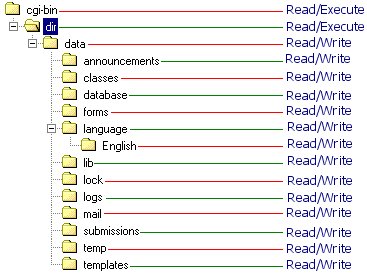
The directories permissions should be set
as following
Executables directory:
The this directory should be set to
read/executable (unix 755).
All the files under this directory should be set to read/execute (unix
755).
The data directory and all its
subdirectories and files should be set to writeables (unix 644, 744, 777,
...).
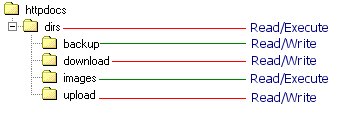
The documents directory should be set to
read/execute (unix 755).
Directories backup, download, and upload should be set to writeables.
|
|
|
 |
|
|
Figure (3).
Executables directories permissions.
|
|
|
 |
|
|
Figure (4).
Documents directories permissions.
|
|
|
Executables Files Extensions |
|
|
The executables files are
located in the executable directory only. The extension of these files are
".exe", for example admin.exe, search.exe on windows systems
(This is the Windows version of the program). The executables files has no
extensions on the Unix platforms (This is the Linux, FreeBSD, Solaris, etc
version of the program), for example the admin program name is admin, the
search program name is search, etc.
If you decided to rename the executables
files, Then you have also to edit the file startup.ini located in the data
directory also.
|
|
|
Start the Admin Program |
|
|
The first step to start the
program configuration to access the main admin program. The main admin
program file is admin.exe for Windows, and admin (with no extension) for
Unix.
Now point your browser to the admin
program, for example:
http://www.youdromain.com/cgi-bin/dir/admin
Note also you do not have to enter the
".exe" extension on Windows system, i.e.
http://www.youdromain.com/cgi-bin/dir/admin
and
http://www.youdromain.com/cgi-bin/dir/admin.exe
are the same.
Now you should see the admin center login
screen. Please enter the default login is admin, admin. Please once you
login change these settings everyone knows the default login and could
damage your server.
The first thing now in the configuration
is the SQL database information.
SQL database information:
From the admin center, click on
"Configuration". Enter the sql database information:
SQL Host: The SQL host, if localhost,
enter localhost.
SQL Database Name: The database name.
SQL Database User name: The database user name.
SQL Database Password: The database password.
SQL Database Driver: The SQL server driver.
Click save changes to save the
information.
Create SQL Tables:
The next step is to create the SQL
database tables. From the admin center, click on "Setup Wizard",
then click on "Create All Engine SQL Tables". This will create
all the tables automatically.
Now you are done with the main
configuration and you should be able to access the main program functions,
including the main search engine program search.exe (or search on Unix).
|
|
|
Start The Main Engine
Program: |
|
|
Now point your browser to the
main engine program, for example:
http://www.youdromain.com/cgi-bin/dir/search.exe
Note also you do not have to enter the
".exe" extension on Windows system, i.e.
http://www.youdromain.com/cgi-bin/dir/search
and
http://www.youdromain.com/cgi-bin/dir/search.exe
are the same.
If you got this program working by now,
then you have finished completely installing and basic configuring the
program.
The next step is to to the normal program
configuration which can be done at any time.
|
|
|
Configure
The Mail program |
|
|
From the admin center, click on
"Configuration", then enter your mail program information or
SMTP server. You need to have mail program like "Sendmail" or an
SMTP mail server available. If you do not know these information, ask your
server administrator or your hosting company.
|
|
|
Configure
The Available Languages |
|
|
From the admin center, click on
"Language manager". Then click on "Prepare All Available
Languages", this will search for all installed languages and prepare
it for use by the program.
next step is to select the default
language from the same page. Under "Set Default Language",
select the language you want to be the default, then click on submit to
save the changes.
|
|
|
Create
Account |
|
|
Go to your main program, create
an account, and test all the program functions.
|
|
|
Create
Categories |
|
|
May be the first thing you will
need to do after you finish your program configuration, is to create
categories, from your admin center, click on "Category Manager"
to create categories.
|
|
|
Read The
Help |
|
|
Inside your admin center, at
the top navigation, the link "Help" will open the main help
index for the program.
Inside each admin page, there is a link
called "What's This" at the top right corner of the menu. Click
on this link to get help on this specific page items.
|
|
|
Congratulations |
|
|
Congratulations on having your
program installed and running. Thank you for your business with us. We are
very glade to be at your trust.
Please spread the word and let everyone
you know knows about our products.
Thank you
The Mewsoft Team
Elsheshtawy A.A.
Mewsoft President/CEO
Mewsoft
801 gate LN, Suite 207
Knoxville, TN 37909
USA
Phone: 1-865-450-3467 (USA)
http://www.mewsoft.com
sales@mewsoft.com
|
|
|
|
|